 Kitebox Labs
Copy any web page as clean Markdown
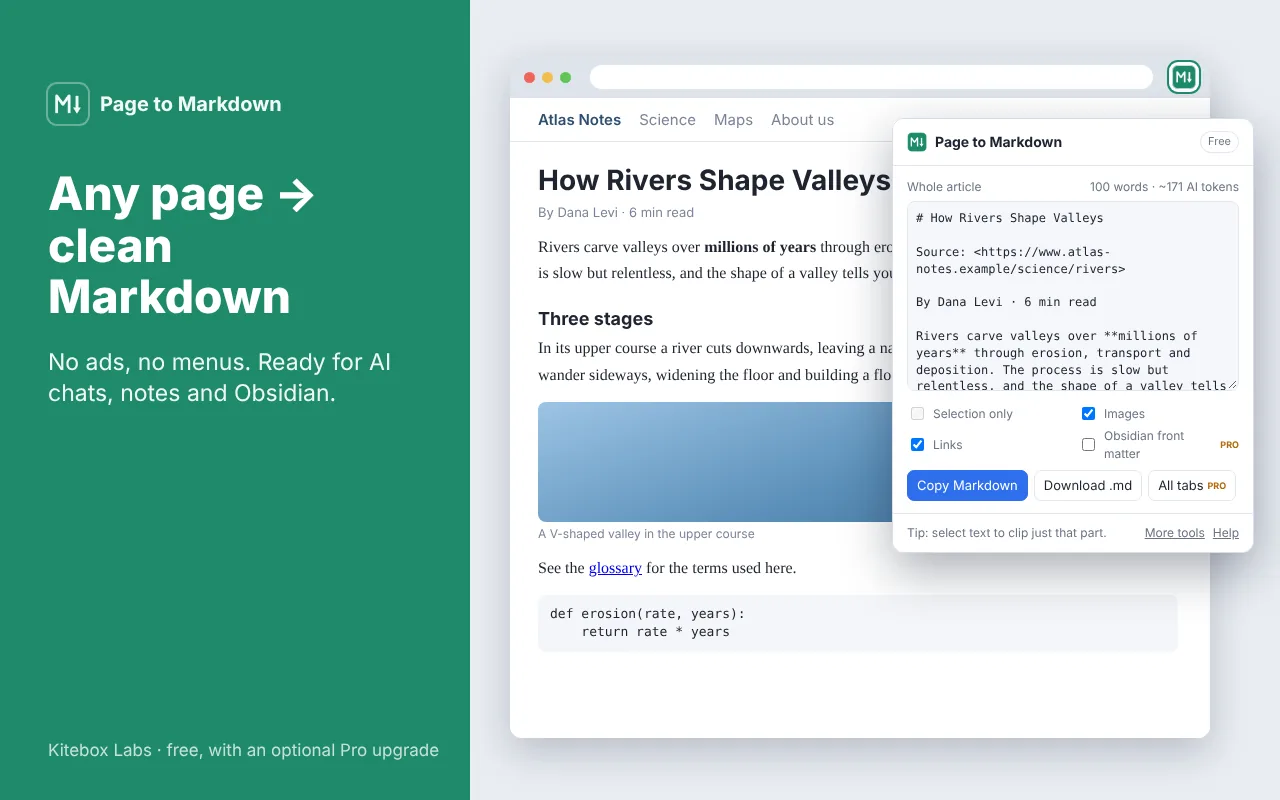
Page to Markdown takes the article out of a page, without the menus, ads and sidebars, and gives it to you as Markdown. Copy it into an AI chat or a note, or download it as a .md file.
How to use it
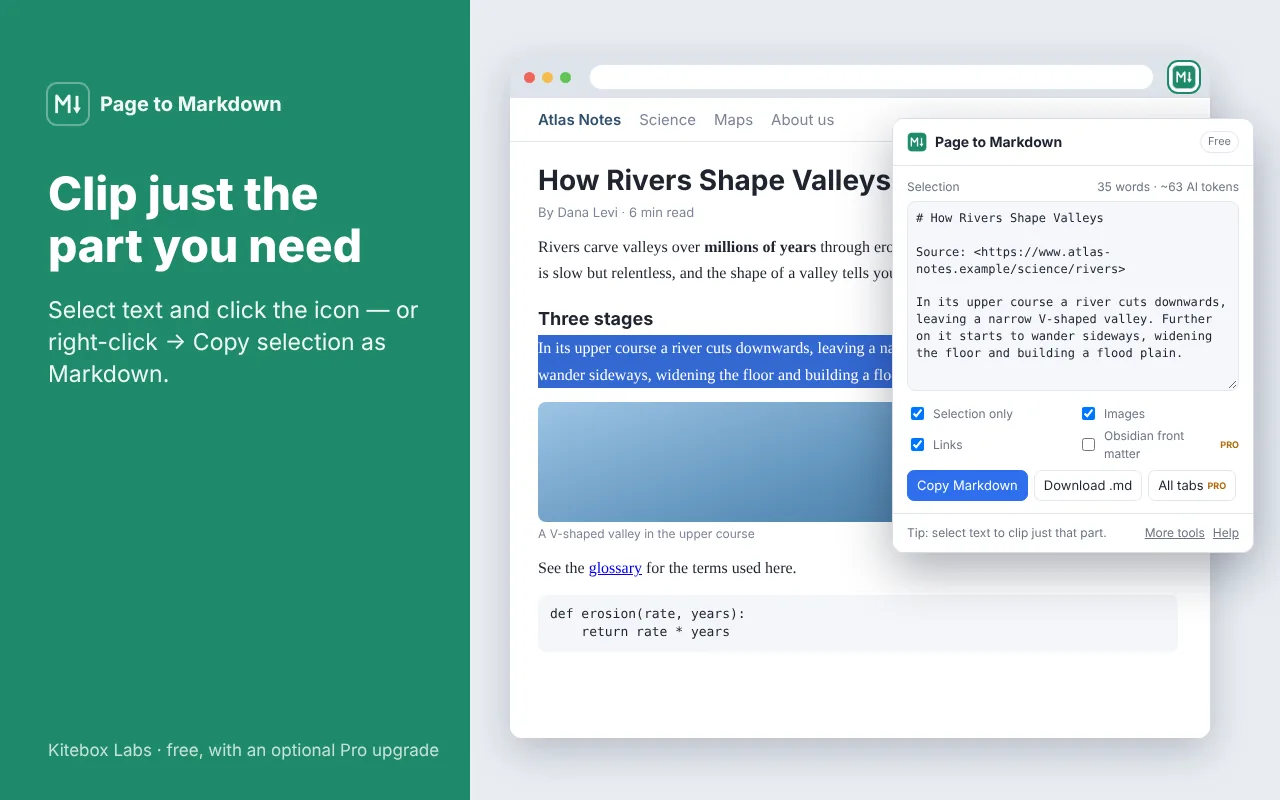
- Open an article. To clip only a part of it, select that text first.
- Click the Page to Markdown icon, or right-click the page and choose “Copy page as Markdown”.
- Press Copy Markdown, or download the .md file.
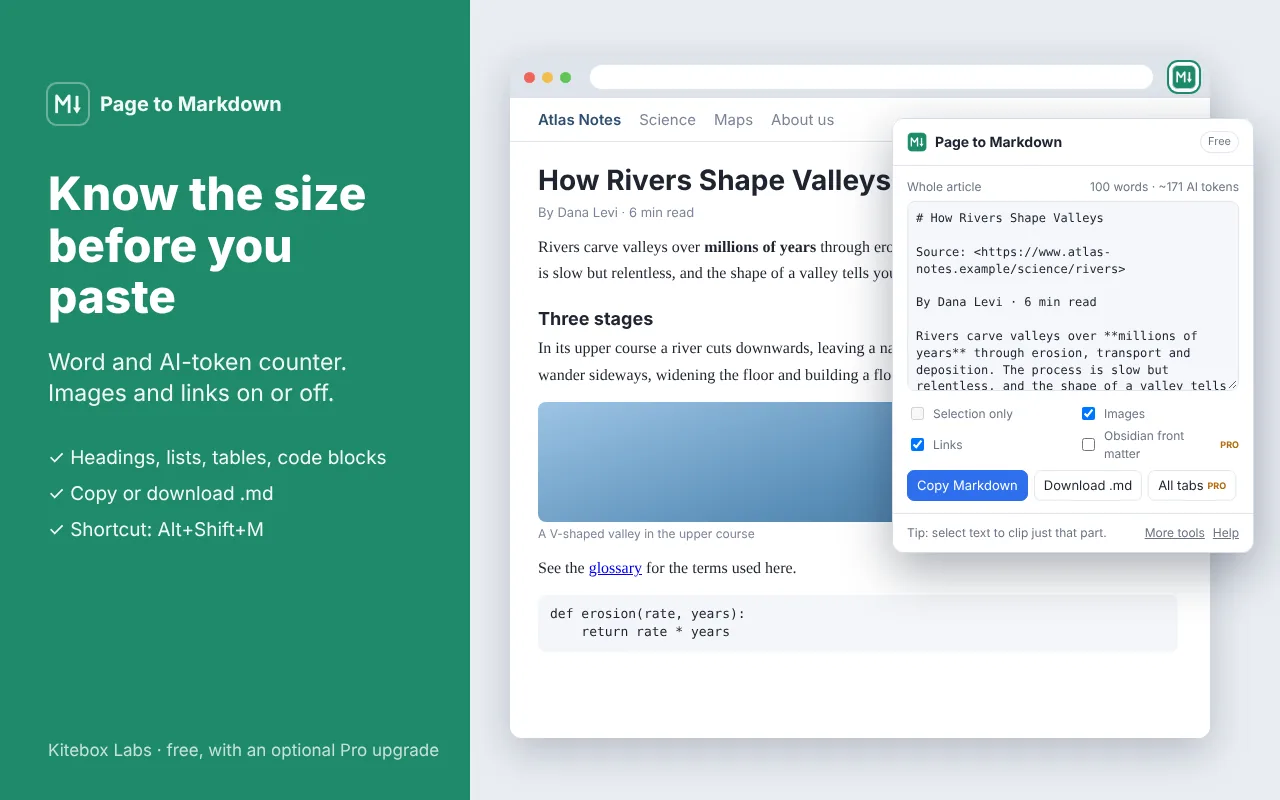
Keyboard shortcut: Alt+Shift+M opens the extension.
Free
- The main article is found automatically
- Selection only: convert just the text you highlighted
- Headings, lists, tables, links, images and code blocks with their language are kept
- Word count and an estimate of AI tokens before you paste
- Right-click menu for the page or the selection
- Switch images and links off when you only need the text
Pro, a one-time US$9 (coming soon)
- Front matter for Obsidian: title, source, author and date
- Every open tab of the window in one Markdown file
Free features stay free. About Pro
Questions
- How do I give a web page to an AI assistant as context?
- Open the page, click the icon and press Copy Markdown, then paste into the chat. Markdown keeps the structure of the page, so headings, lists, tables and code arrive in a form the assistant reads well.
- What does the token counter show?
- An estimate of how much of an AI model’s context the text will use: roughly one token for every four characters. Real counts differ a little between models.
- Can I clip only one paragraph or section?
- Yes. Select the text and open the extension: “Selection only” is switched on for you. The right-click menu has “Copy selection as Markdown” as well.
- The result contains too little, or the wrong part of the page.
- Pages that are not articles, such as search results or dashboards, have no single main text. Select the part you need and clip the selection instead.
- Is the page sent to a server?
- No. The conversion happens in your browser, and only when you click the icon or the menu item.